
To completely uninstall Positron and any preferences or settings related to Positron from Windows, follow the steps below. This will allow you to (if needed) perform a completely fresh install of Positron.
Search Windows for “Add or remove programs” and open the resulting settings panel.
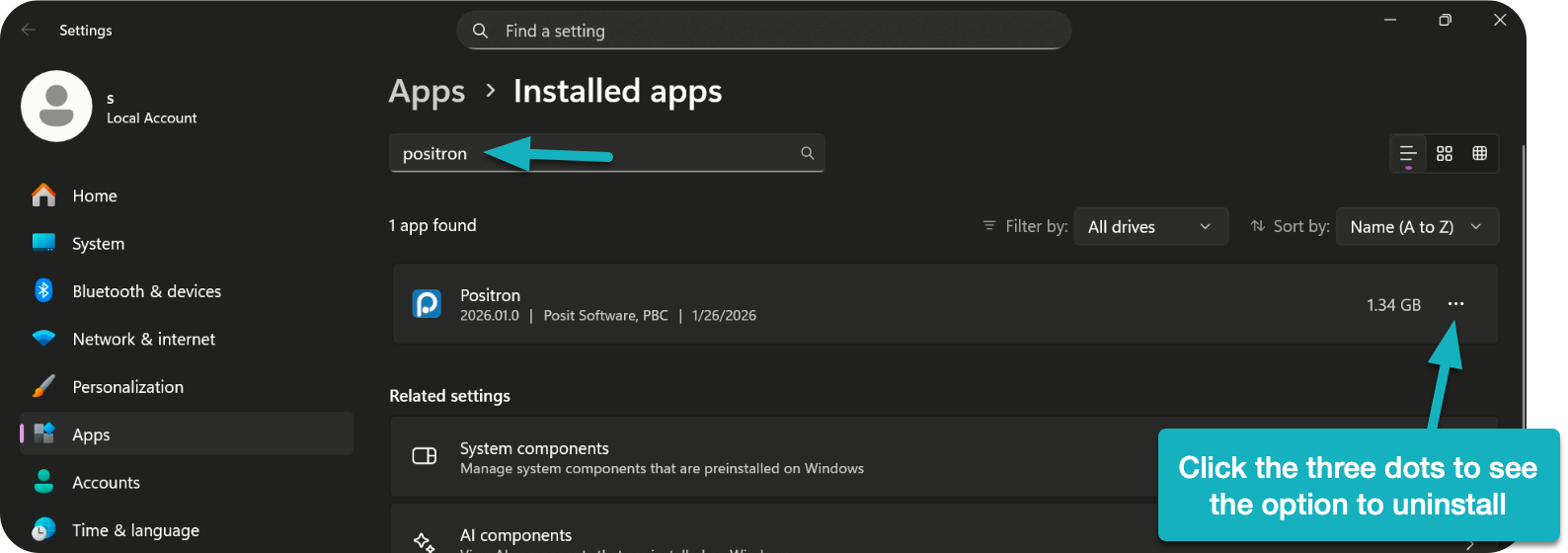
In the list of installed applications, search for Positron. When you see it listed, click the three dots next to the program name and select Uninstall.
To get a truly fresh reinstall, you also need to delete the directories where Positron stores user settings, configuration files, and cached data.
Open PowerShell and run the following commands:
Remove-Item -Recurse -Force "$env:APPDATA\Positron","$HOME\.positron"
These folders contain Positron-specific preferences and state. If you skip this step and only uninstall the application, Positron may retain some of your previous settings when you reinstall it.
After completing both steps, Positron will be fully removed from your system. A new installation will behave like a first-time setup, with no prior configuration carried over.
No subscriptions, no auto-renewals.
Just a simple one-time payment that helps support my free, to-the-point videos without sponsered ads.
Unlocking gets you access to the notes for this video plus all 200+ guides on this site.
Your support is appreciated. Thank you!
 How to Manage Settings in Positron
 How to Set Up and Use AI Features in Positron
 Goodbye RStudio, Hello Positron