
Dynamic Zoom in DaVinci Resolve is used to automatically animates a smooth zoom-in or zoom-out over the length of a clip. Unlike manually keyframing scale and position, Dynamic Zoom is a one-click way to create a smooth zoom effect.
In the Edit page, click on the clip you want to zoom.
In the Inspector, enable Dynamic Zoom.
In the Viewer tool dropdown, select Dynamic Zoom.
The green box is where the zoom will start, the red box is where it will finish. Adjust the size and location of these boxes to style your zoom.
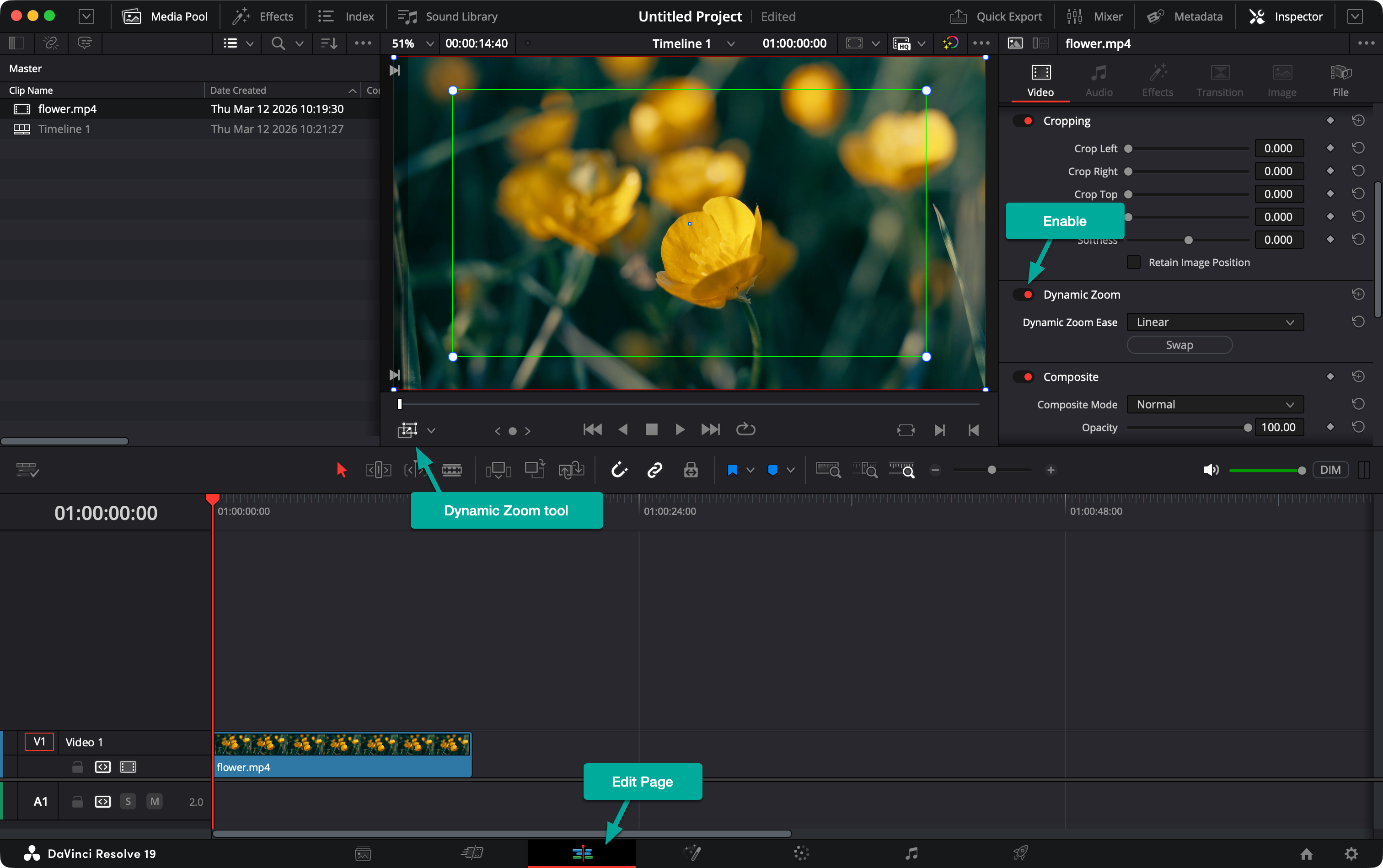
In the Inspector, you can configure the motion of the zoom using one of the Ease options:
You can also click the Swap button to swap the start (green box) and finish (red box) of the zoom.
By default, Dynamic Zoom applies across the entire clip. If you want the zoom to occur only at the beginning, first split the clip using the Blade tool and apply Dynamic Zoom to just that section.
 Blur something out in DaVinci Resolve
 How to Record a Voiceover in DaVinci Resolve (New Voiceover Tool)
 DaVinci Resolve - Free Up Disk Space After Completing a Project