Video Notes
How to create a fly-through text effect in DaVinci Resolve where the camera appears to move through the letters of a title and into the video. The effect uses a simple combination of titles, composite modes, and Dynamic Zoom, making it easy to build directly in the Edit page.
Steps
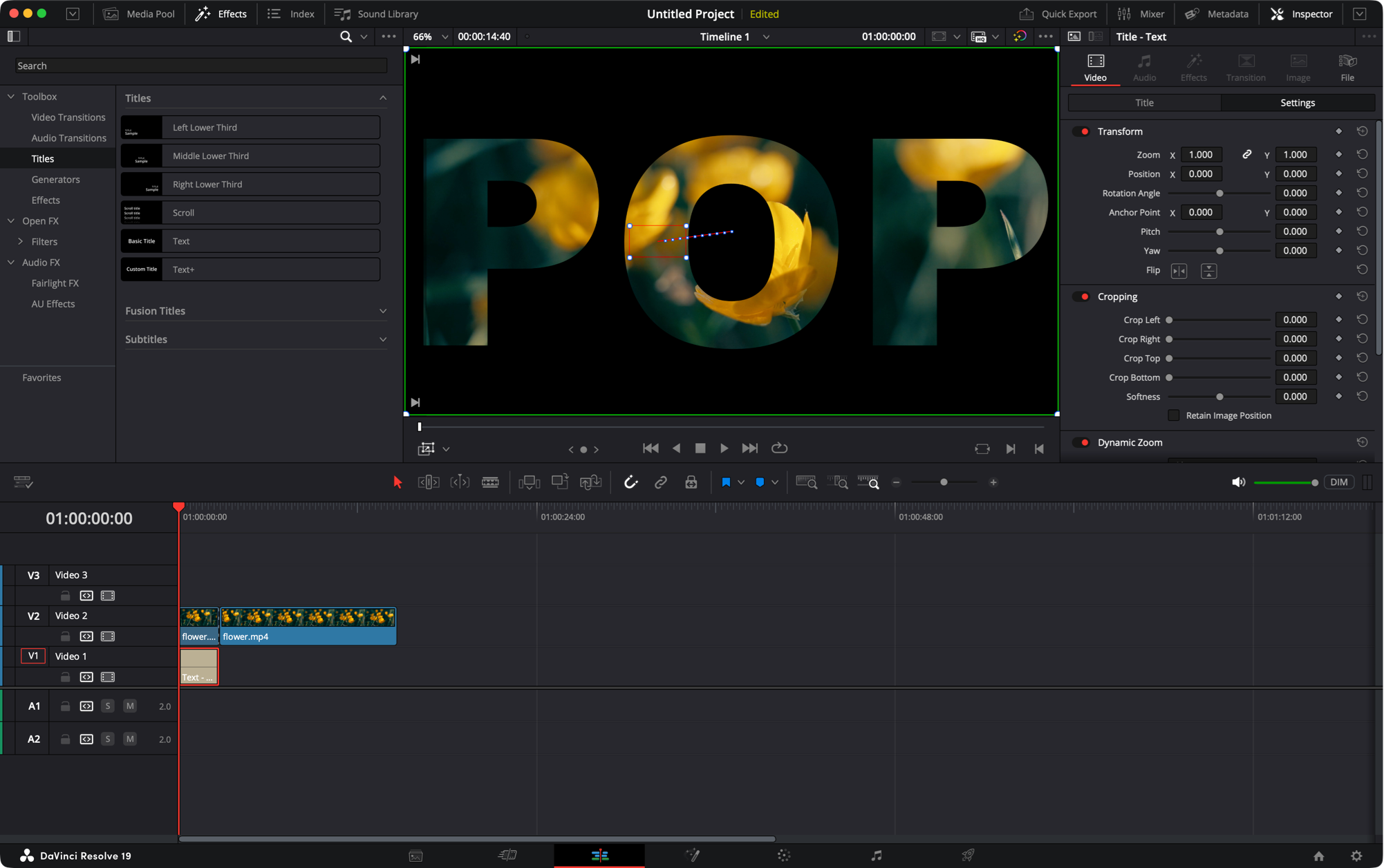
- Add a Basic Title below your video clip. Adjust the title’s duration so it covers roughly the first quarter of the video clip.
- Select the video clip. In the Inspector, change the Composite Mode to Multiply.
- Select the title clip, then in the Title Inspector adjust the text, font family, and size so the letters fill most of the screen.
- With the title clip selected, enable Dynamic Zoom in the Inspector. Click Swap so the effect zooms out rather than in.
- In the Viewer, use the Dynamic Zoom tool to resize the red inner box so it fits inside one of the center letters.
- Use the Blade tool (B) to cut the video clip at the point where the title clip ends.
- Select the second portion of the video clip and change the Composite Mode back to Normal.

 Dynamic Zoom in DaVinci Resolve
 Record a voice-over in DaVinci Resolve
 Automatically Remove Silences in DaVinci Resolve