
If your timeline feels slow, choppy, or unresponsive when editing in DaVinci Resolve, you’re likely working with footage that’s too heavy for real-time playback.
This is where proxy media comes in.
Proxy media are lower-resolution, easier-to-play versions of your original video files. Instead of editing directly with large, high-quality footage (like 4K or high bitrate video), Resolve uses these optimized proxy files to improve performance.
When you export your project, Resolve automatically switches back to the original high-quality media.
Using proxy media can significantly improve your workflow— playback becomes smoother, scrubbing is faster, and editing feels more responsive.
After importing your footage, select one or more clips in the Media Pool, then right click and choose Proxy Media > Generate Proxy Media.
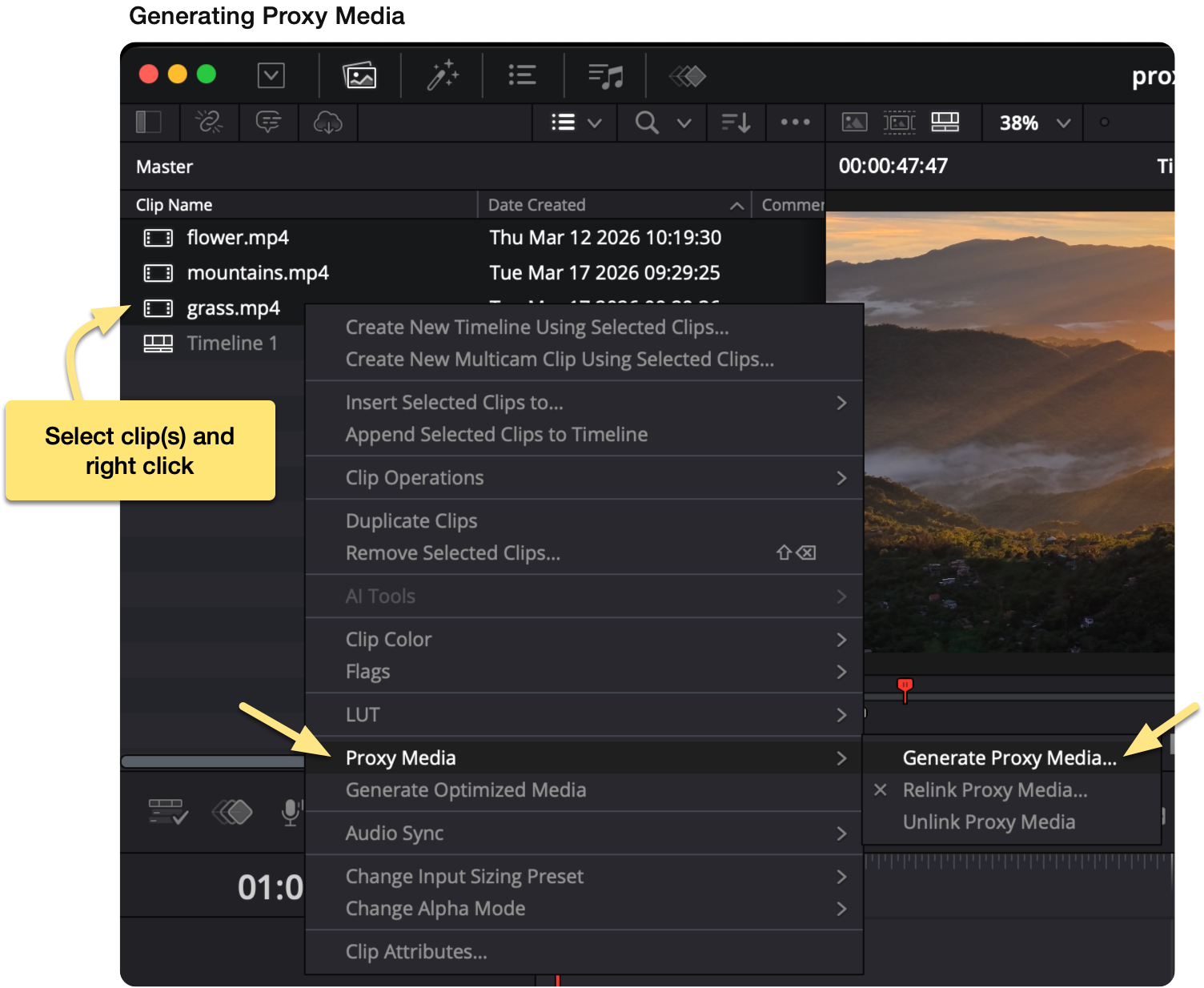
Resolve will generate proxy files and store them in a folder called Proxy.

To use the proxy files, open the Viewer and select Prefer Proxies from the Proxy Handling dropdown.

You can control the quality and size of your proxies under:
Project Settings → Master Settings → Optimized Media and Render Cache
By default, Proxy Media Resolution is set to “Choose Automatically.” This scales proxies based on your source footage. For example:
If you’re working with large projects or a less powerful machine, you may want to manually choose a lower resolution to improve performance.

When you’re finished editing, you can safely delete the Proxy folder to free up disk space. These files are temporary and can be regenerated at any time.
As an alternative to manually generating proxies within DaVinci Resolve, you can use Blackmagic Proxy Generator Lite, which is installed alongside Resolve.

Unlike the built-in proxy workflow, Proxy Generator runs as a separate application and works at the folder level rather than the project level. You point it to a folder containing your media, and it will automatically generate proxy files in the background— even before you open Resolve. This makes it especially useful for larger projects or ongoing workflows where new footage is added regularly.
 How to Reduce Proxy File Size in DaVinci Resolve
 Blur something out in DaVinci Resolve
 Record a voice-over in DaVinci Resolve