
If you’ve ever tried to drag a transition between two clips in DaVinci Resolve and nothing happens, you’re not alone. This is a common issue, and the cause is usually simple:
There isn’t enough extra footage (aka handles) on one or both clips to create the transition.
When you apply a transition (like a cross dissolve), Resolve needs additional frames at the end of the first clip and the beginning of the second clip.
If your clips are already trimmed tightly (meaning they start and end exactly where the footage begins) there are no extra frames available to blend between.
As a result, Resolve won’t let you apply the transition.
The most straightforward solution is to create those extra frames yourself.
Once you’ve done this, there will be enough overlapping frames for Resolve to apply the transition.
You should now be able to drag and drop the transition successfully.
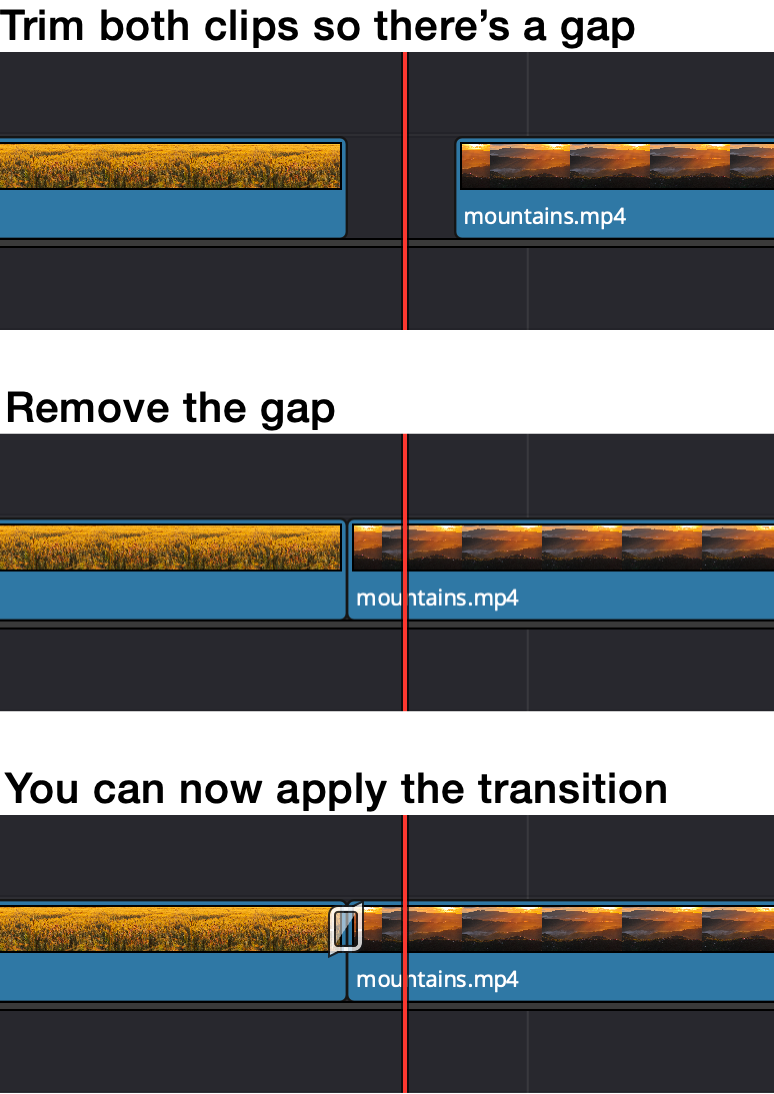
Alternatively:
If there aren’t enough handles, Resolve will show a warning:
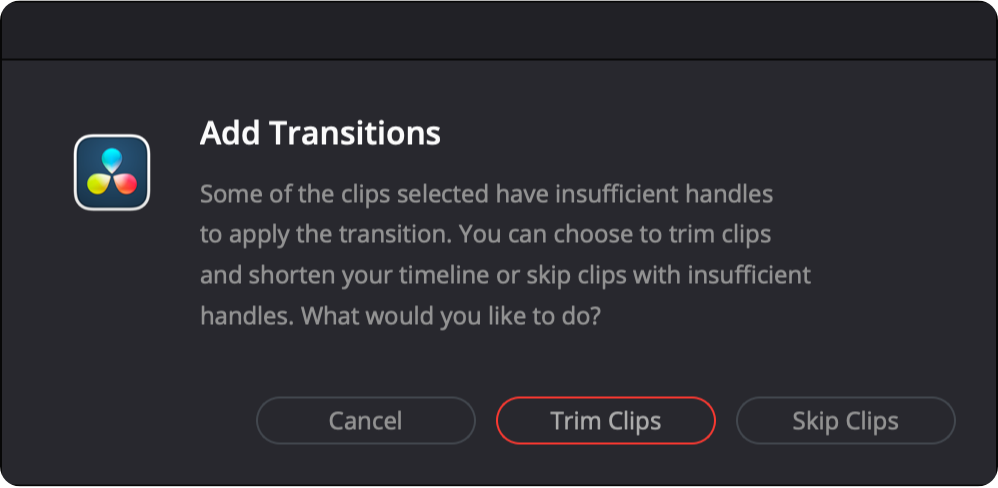
Instead of canceling, choose: Trim Clips
Resolve will automatically trim just enough from each clip to make the transition possible.
If you frequently use the same transition, you can make things even faster.
Right-click your preferred transition (for example, Cross Dissolve) and choose: Set as Standard Transition
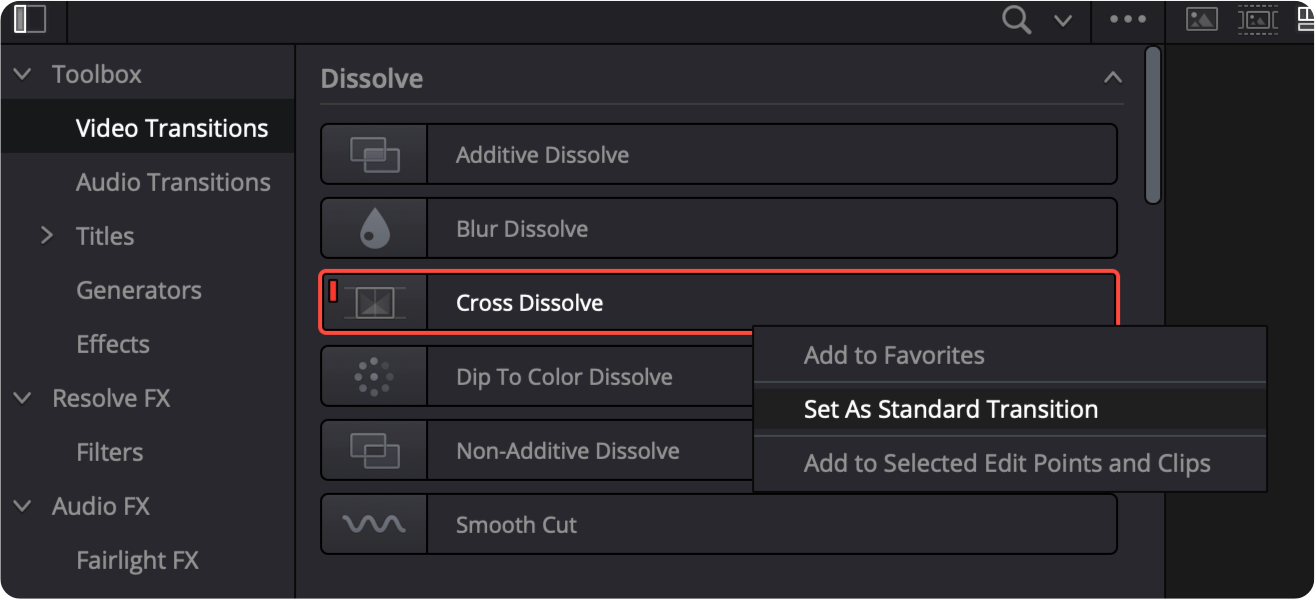
You’ll see a red bar on the transition, indicating it’s now the default.
Once you’ve set a standard transition, you can apply it instantly via a keyboard shortcut:
Resolve will apply your default transition. If needed, it will prompt you to trim the clips automatically.
No subscriptions, no auto-renewals.
Just a simple one-time payment that helps support my free, to-the-point videos without sponsered ads.
Unlocking gets you access to the notes for this video plus all 200+ guides on this site.
Your support is appreciated. Thank you!
 DaVinci Resolve - Fix washed out exports (iPhone footage on Mac)
 Dynamic Zoom in DaVinci Resolve
 Fly Through Text Effect in DaVinci Resolve