
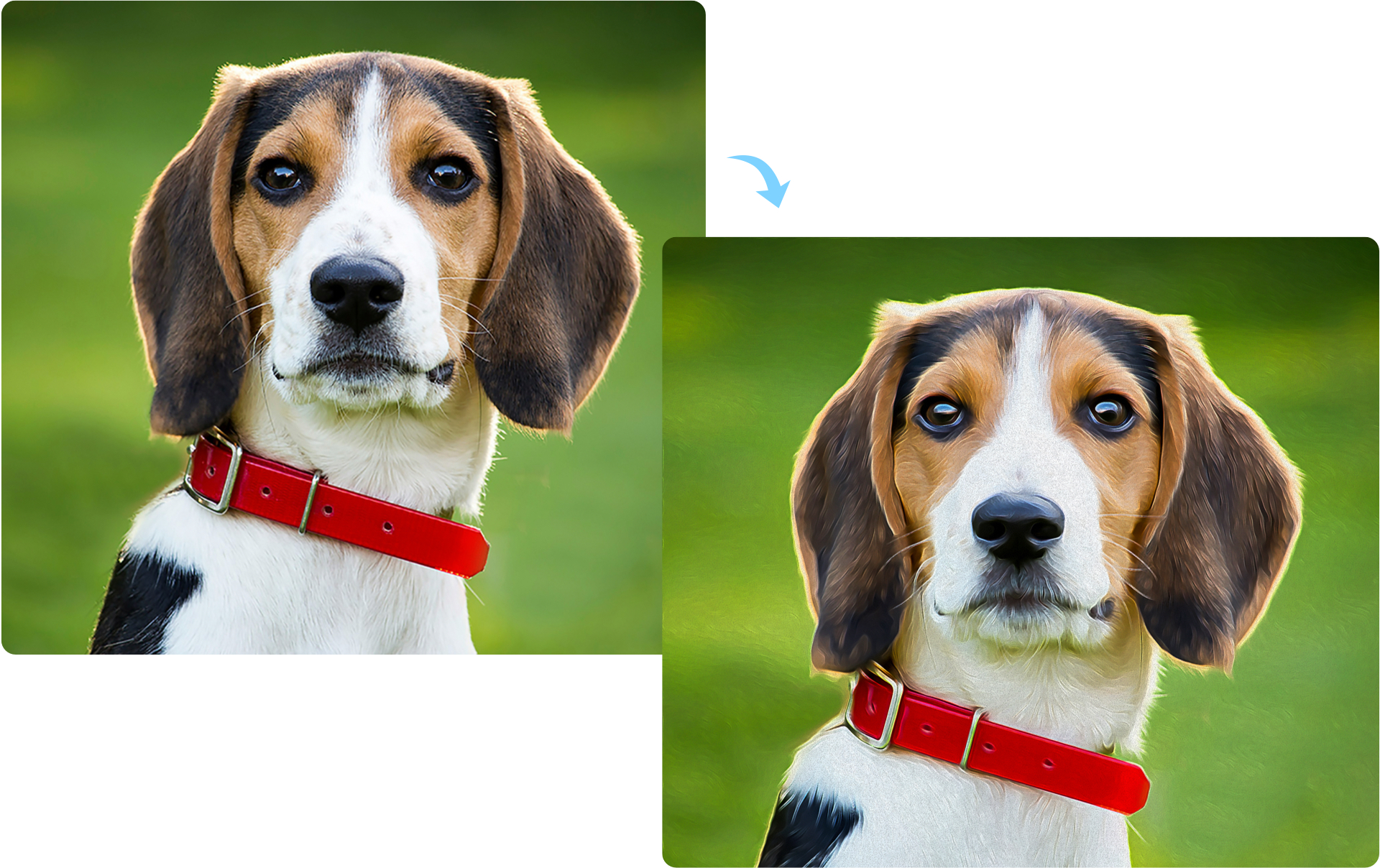
Unzip the folder, then open oil-painting-effect.psd.
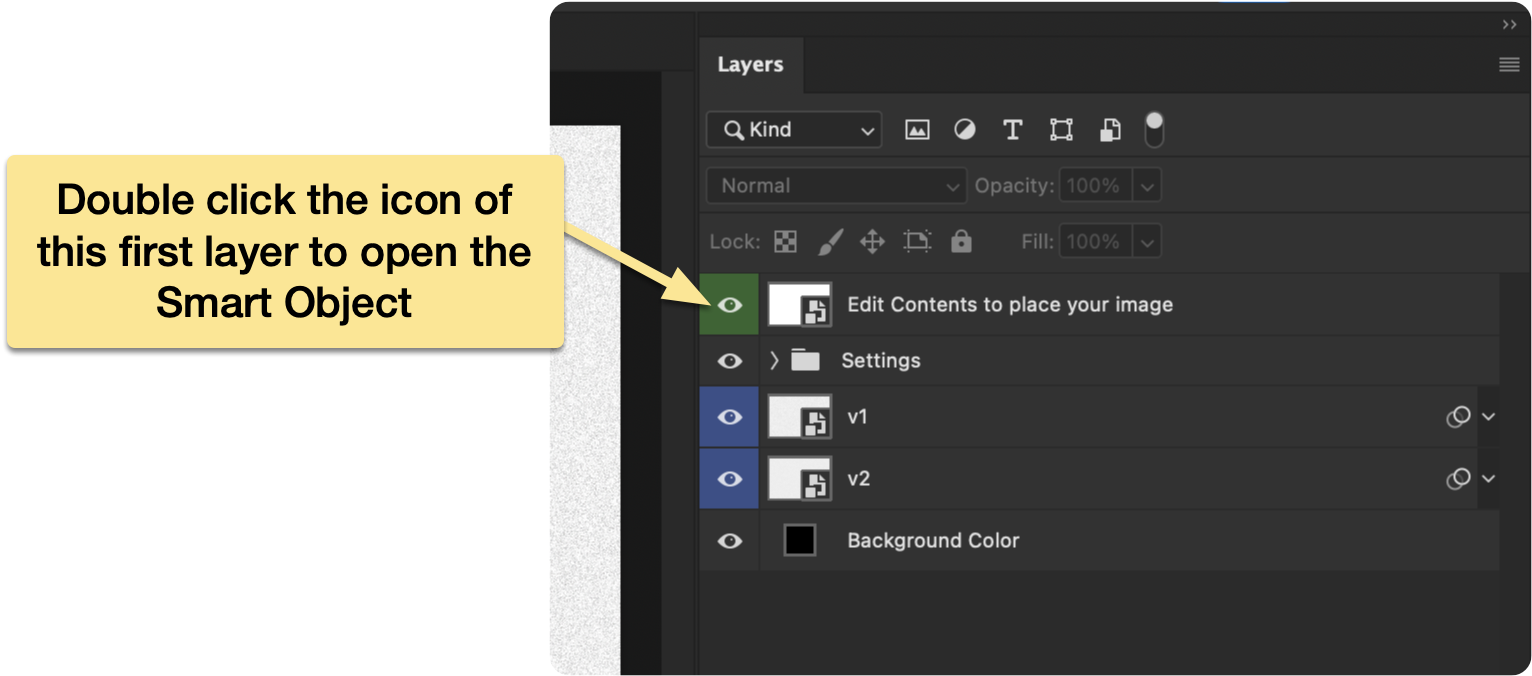
Double-click the thumbnail of the first layer to open the Smart Object where you’ll place your image.
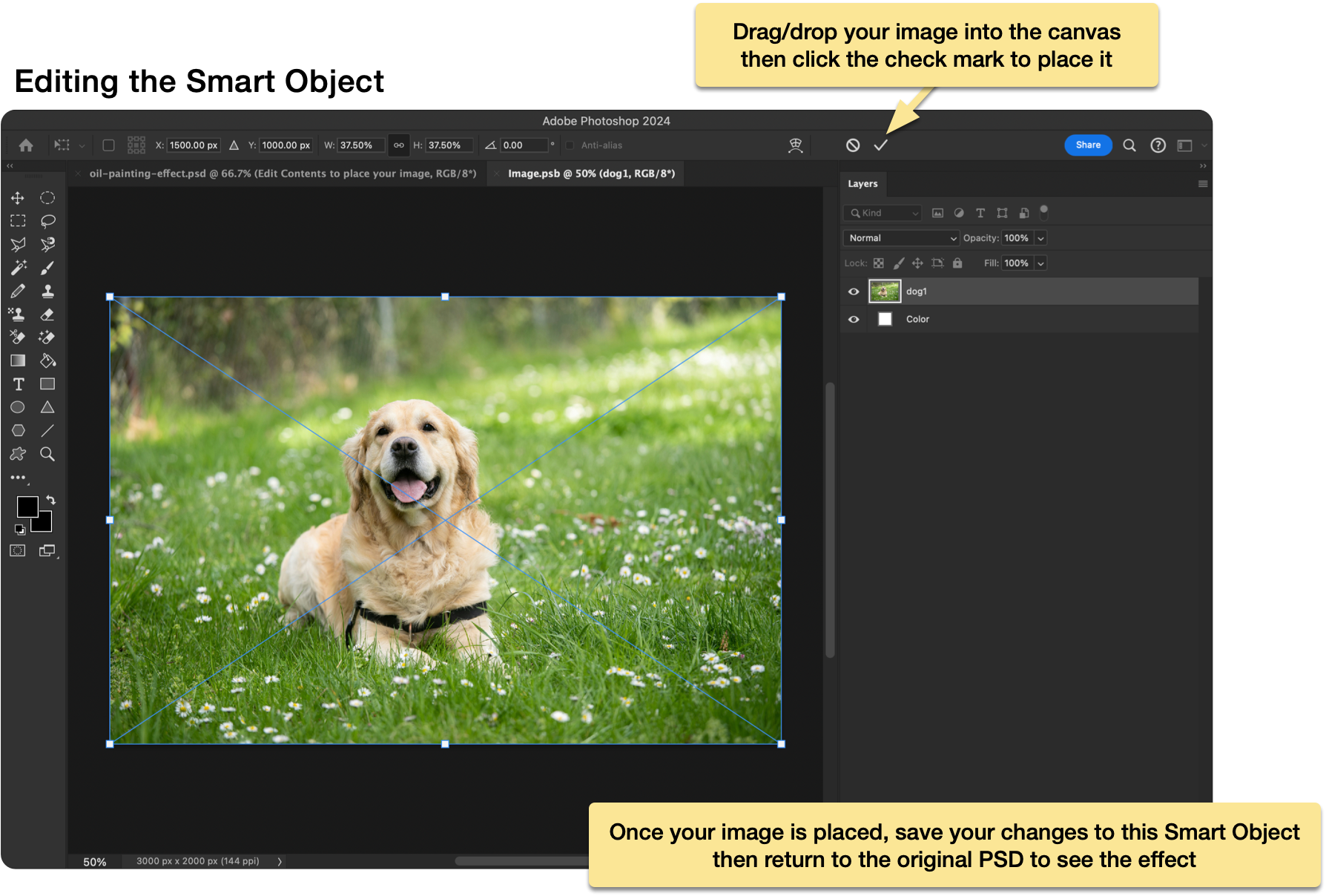
Drag and drop your image into the Smart Object canvas, then click the check mark ✓ to place it. Save and close the Smart Object.
Return to the main file and your image will appear with the effect applied.
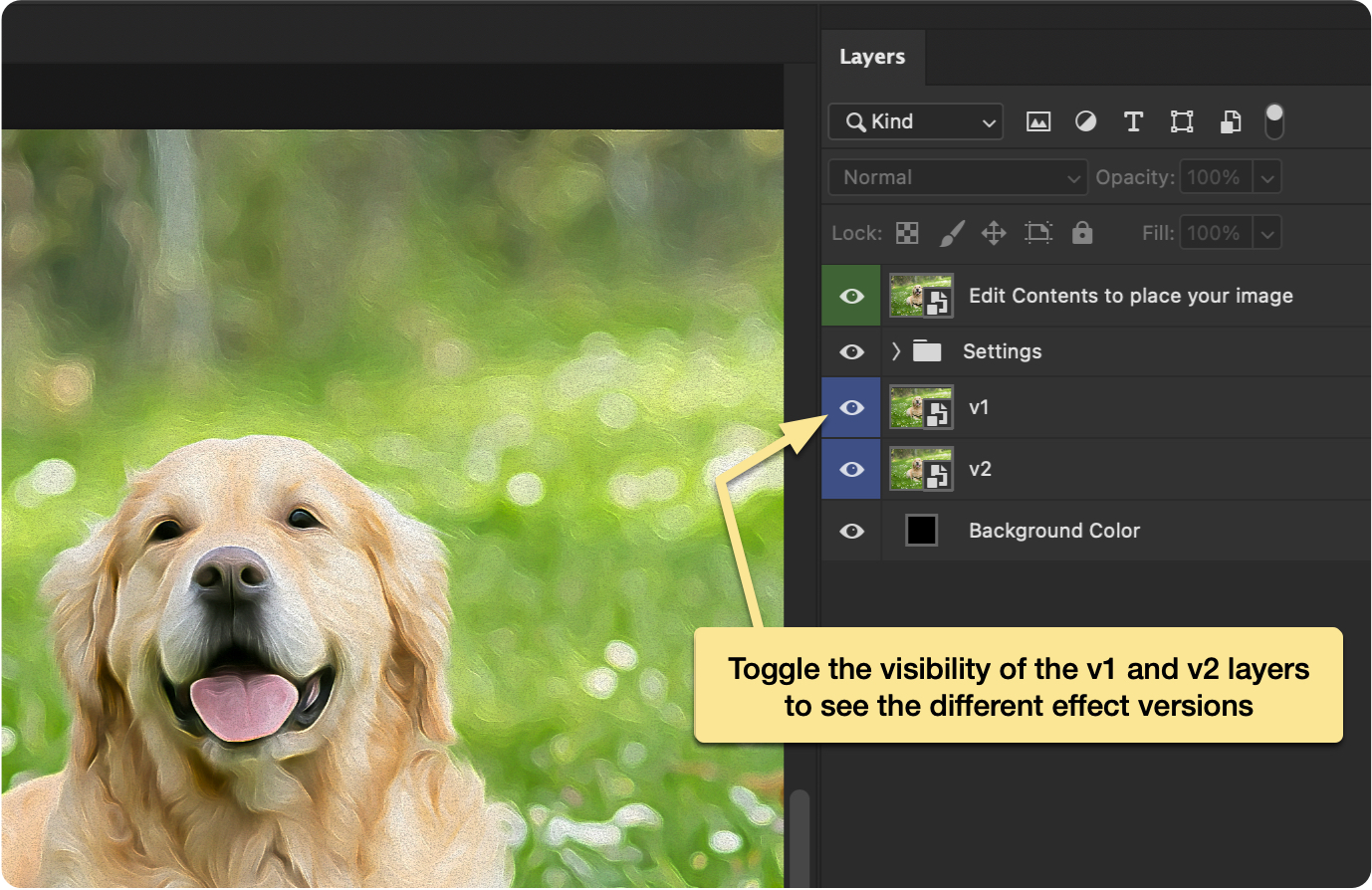
Two versions are included. Toggle their visibility on or off to compare the looks.
If your image doesn’t match the template’s canvas size, here’s the simplest workflow:
After dragging your image into the Smart Object, use the top toolbar to link width and height and set the scale to 100%. Click the check mark ✓ to confirm.
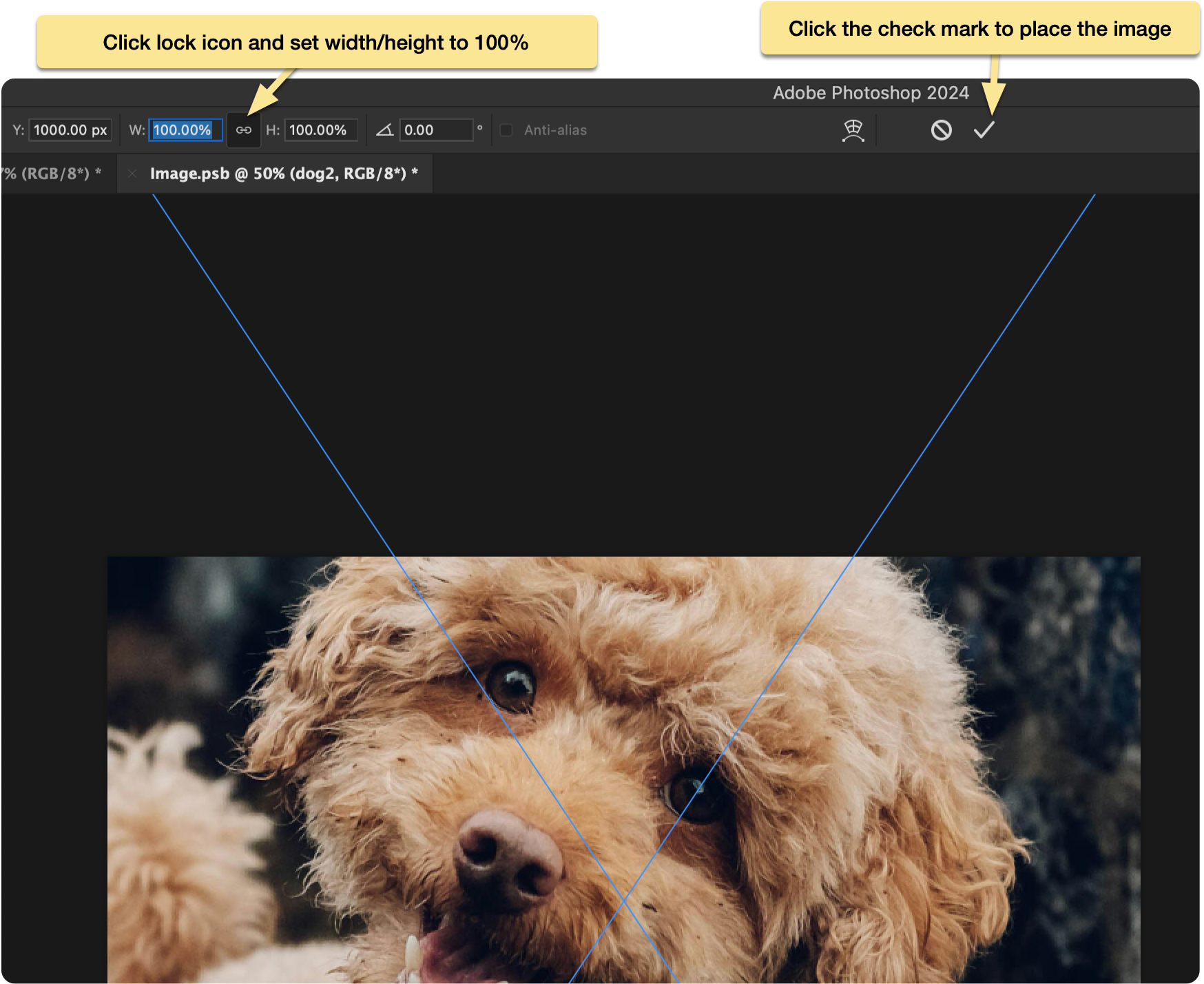
Choose Image → Reveal All to expand the canvas so the full image is visible.
Save and close the Smart Object.
Back in oil-painting-effect.psd, again choose Image → Reveal All so the main document adjusts to the updated Smart Object.
No subscriptions, no auto-renewals.
Just a simple one-time payment that helps support my free, to-the-point videos without sponsered ads.
Unlocking gets you access to the notes for this video plus all 200+ guides on this site.
Your support is appreciated. Thank you!
 Rounded corners in Photoshop
 Optimizing Photos for YouTube Thumbnails (Photoshop)