
Positron is a modern data science IDE created by Posit, built specifically for working with R and Python.
It combines the familiar, data-focused workflow of RStudio with the modern editor foundation and extensibility of VS Code, giving you a single environment for coding, data exploration, visualization, notebooks, and reproducible analysis.
If you’re new to Positron, check out my introductory guide here...
The video above focuses on Positron Assistant, the AI-powered code assistant built directly into Positron. Below is a summary what’s covered:
Model-agnostic
Positron Assistant doesn’t lock you into a single AI vendor. You choose the provider, such as Github Copilot or Anthropic (Claude), with support for additional providers coming soon. This flexibility lets you control cost, model behavior, and capabilities.
Context-aware
When you interact with Positron Assistant, it can see your open files, project structure, active R or Python sessions, and console history. This saves you from a lot of copying/pasting of code and errors that is necessary when working with a standalone or generic AI chat tool.
Multiple interaction modes
Positron Assistant supports different ways of working:
Each mode offers a different balance between control and automation.
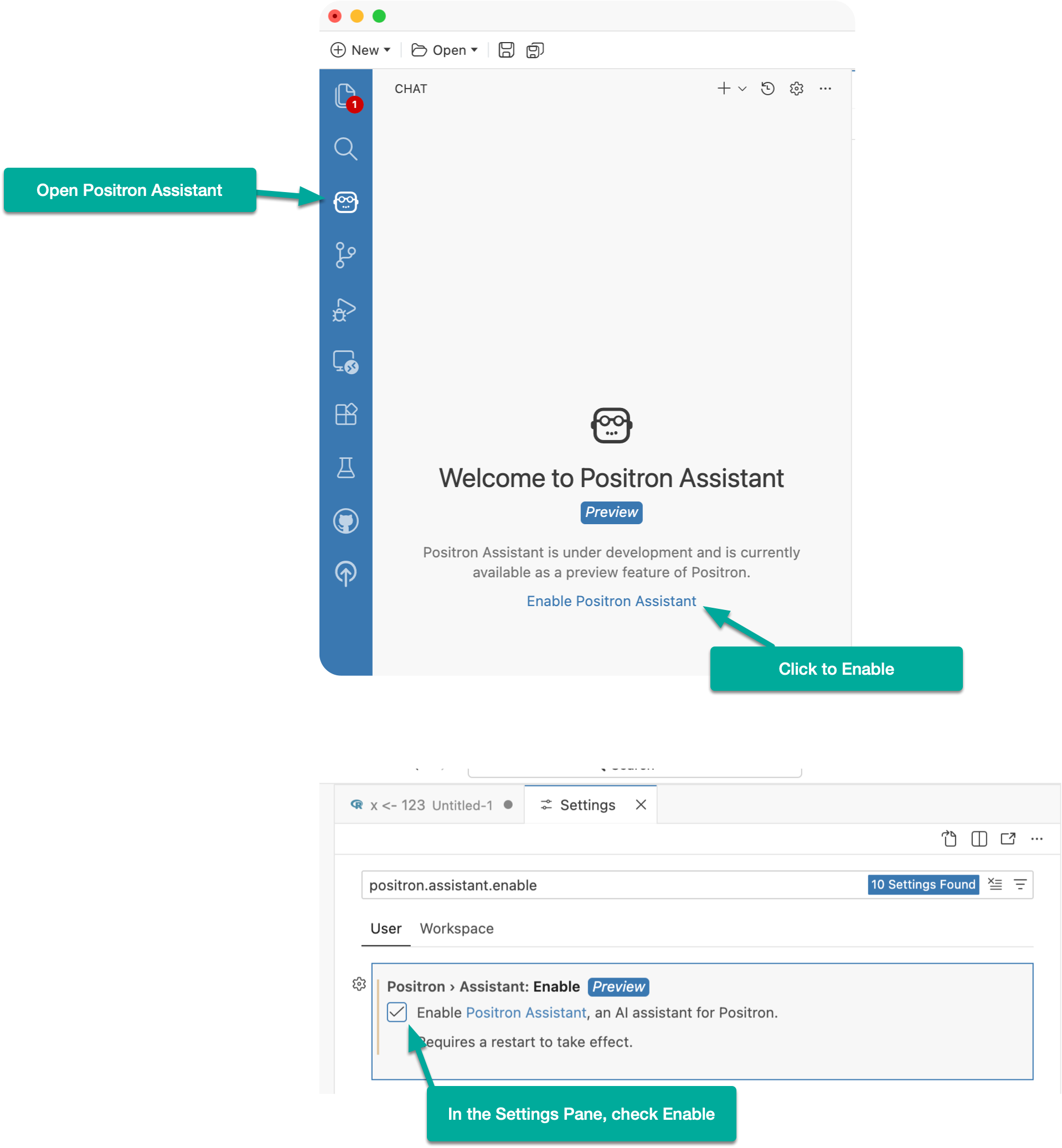
To access Positron Assistant, click the robot icon in the activity bar.
In the chat panel, click Enable Positron Assistant.
In the settings window that appears, check Enable Positron Assistant and close the settings panel.
Back in the chat panel, click Add a Chat Provider.
Choose a provider. In this demo, I’ll use GitHub Copilot and follow the prompts to sign in.
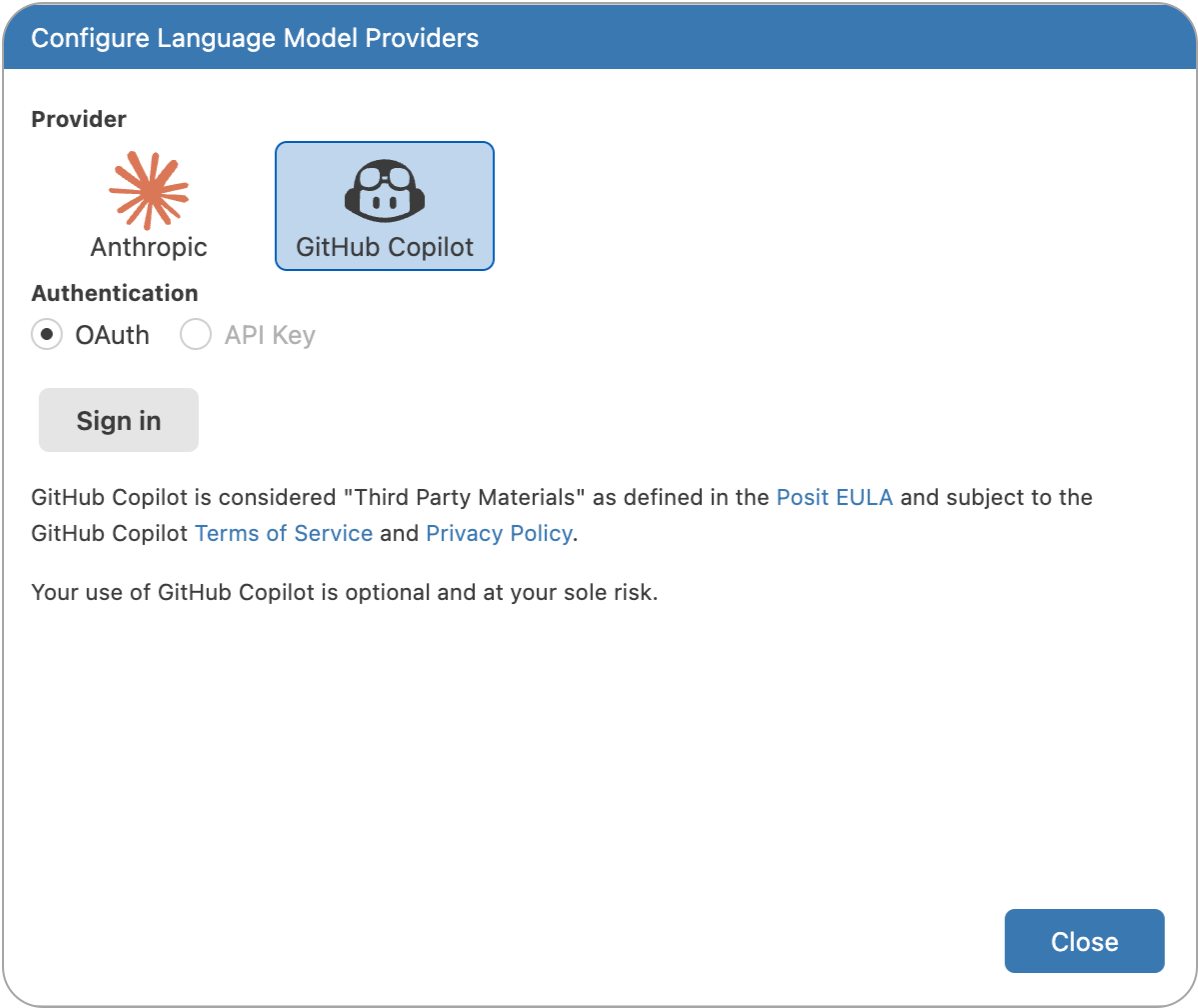
During authentication, you may see a message saying “Authorize Visual Studio Code.” This is expected, since Positron is built on top of VS Code.
Once authorization is complete, Positron will prompt you to reload. After reloading, you should see an active and ready chat panel.
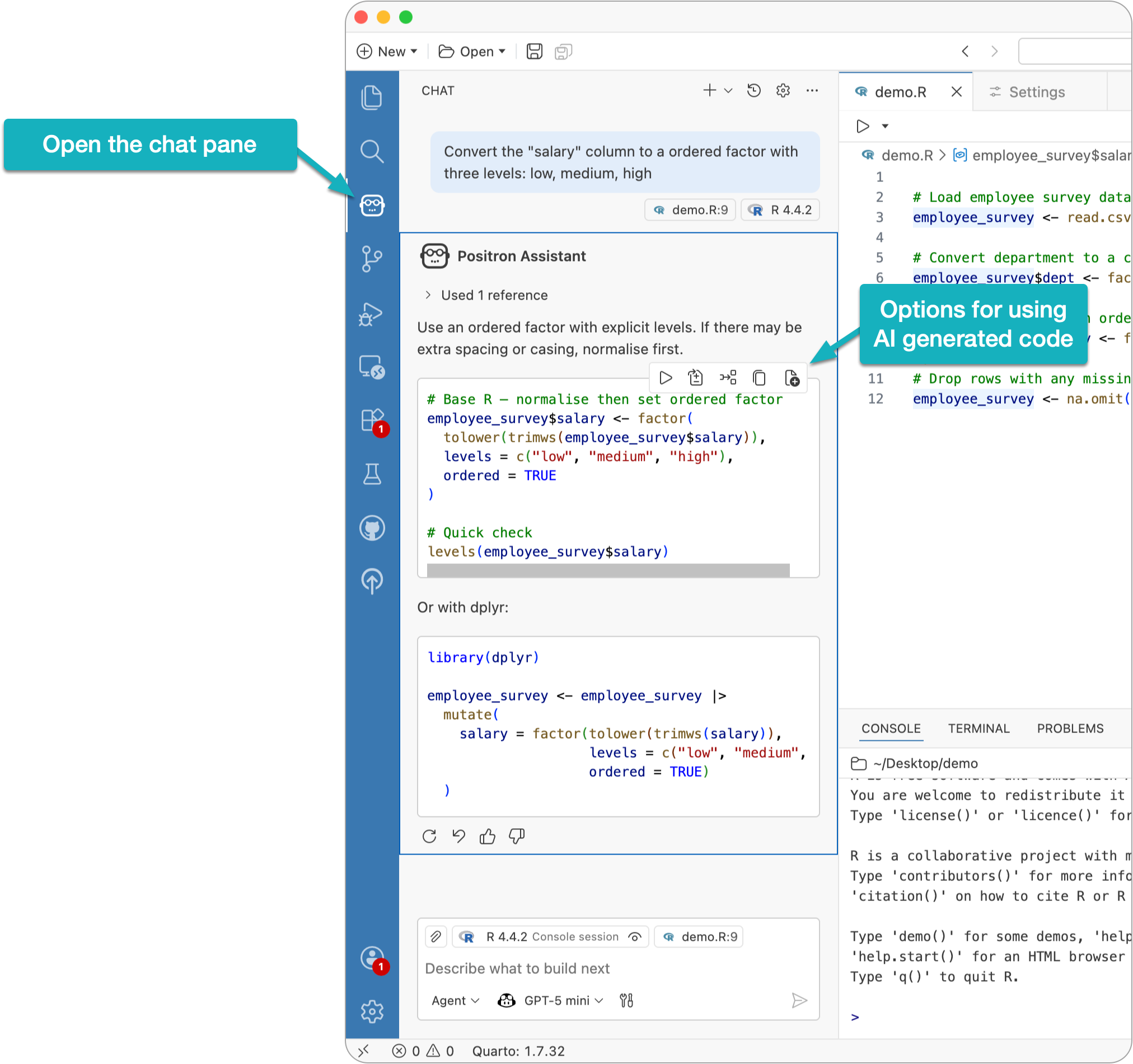
To open the chat pane, click the robot icon in the activity bar or press one of these keyboard shortcuts:
Hover over any code responses in the chat pane to see options to run the code, inject it into the current file, copy it, or insert it into a new file.
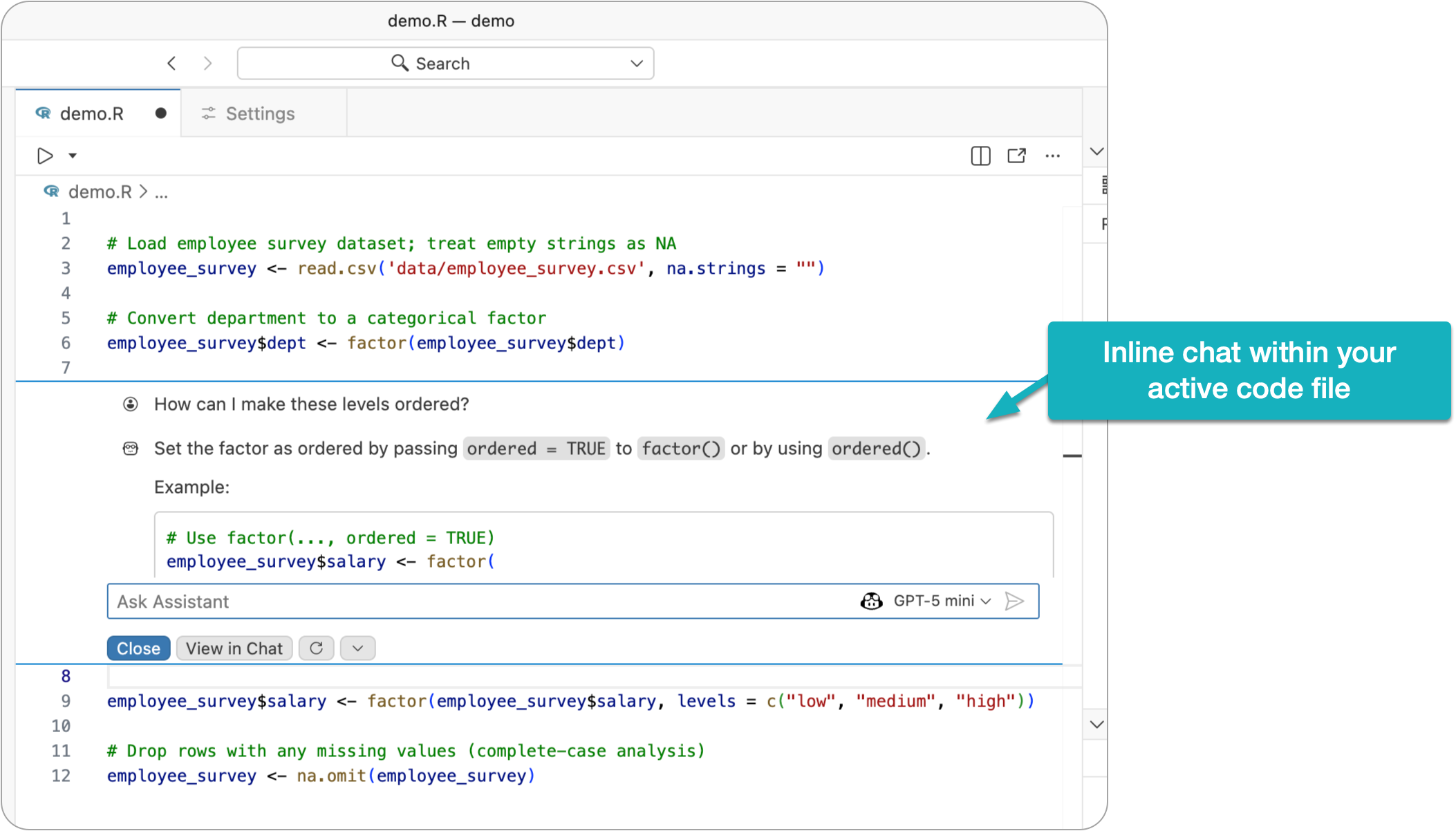
To open the inline assistant, place your cursor in your code file and press one of these keyboard shortcuts:
No subscriptions, no auto-renewals.
Just a simple one-time payment that helps support my free, to-the-point videos without sponsered ads.
Unlocking gets you access to the notes for this video plus all 200+ guides on this site.
Your support is appreciated. Thank you!
 Fully Remove Positron from Windows (Clean Reinstall Guide)
 How to Manage Settings in Positron
 Fully Remove Positron from Mac (Clean Reinstall Guide)