
Positron allows you to manage settings either via a graphical UI or a configuration file. Understanding both approaches helps you customize your workflow and makes it easy to back up or transfer your settings.
To access settings in the UI:
The UI includes hundreds of settings, so make use of the search bar to find what you need quickly.
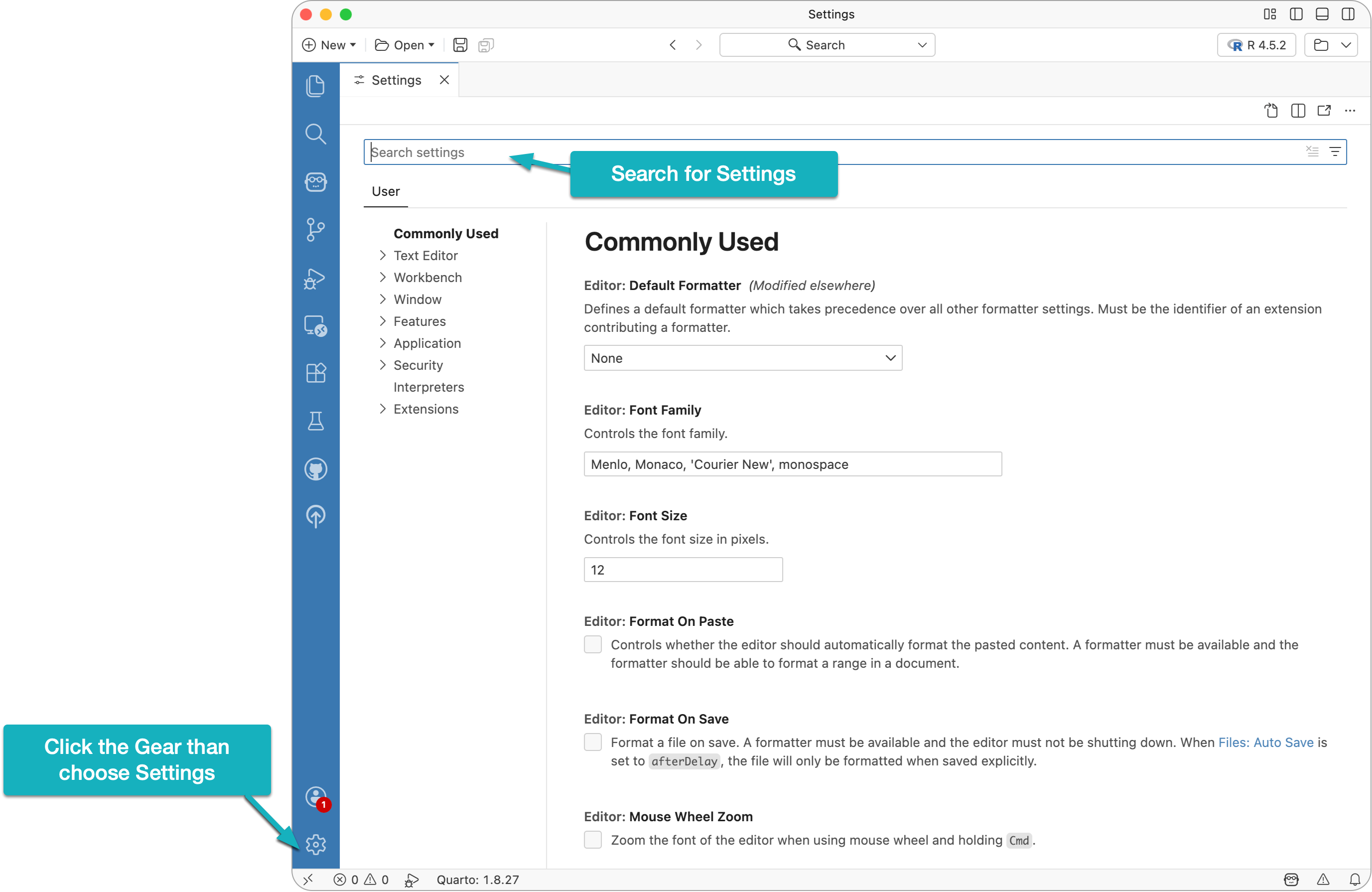
For example, one of the first settings I recommend changing is Auto Save. This ensures your files are saved automatically whenever you switch focus between files or windows:
While the UI is more intuitive, knowing how to manage settings via the configuration file is useful for backups, porting settings, or making bulk edits.
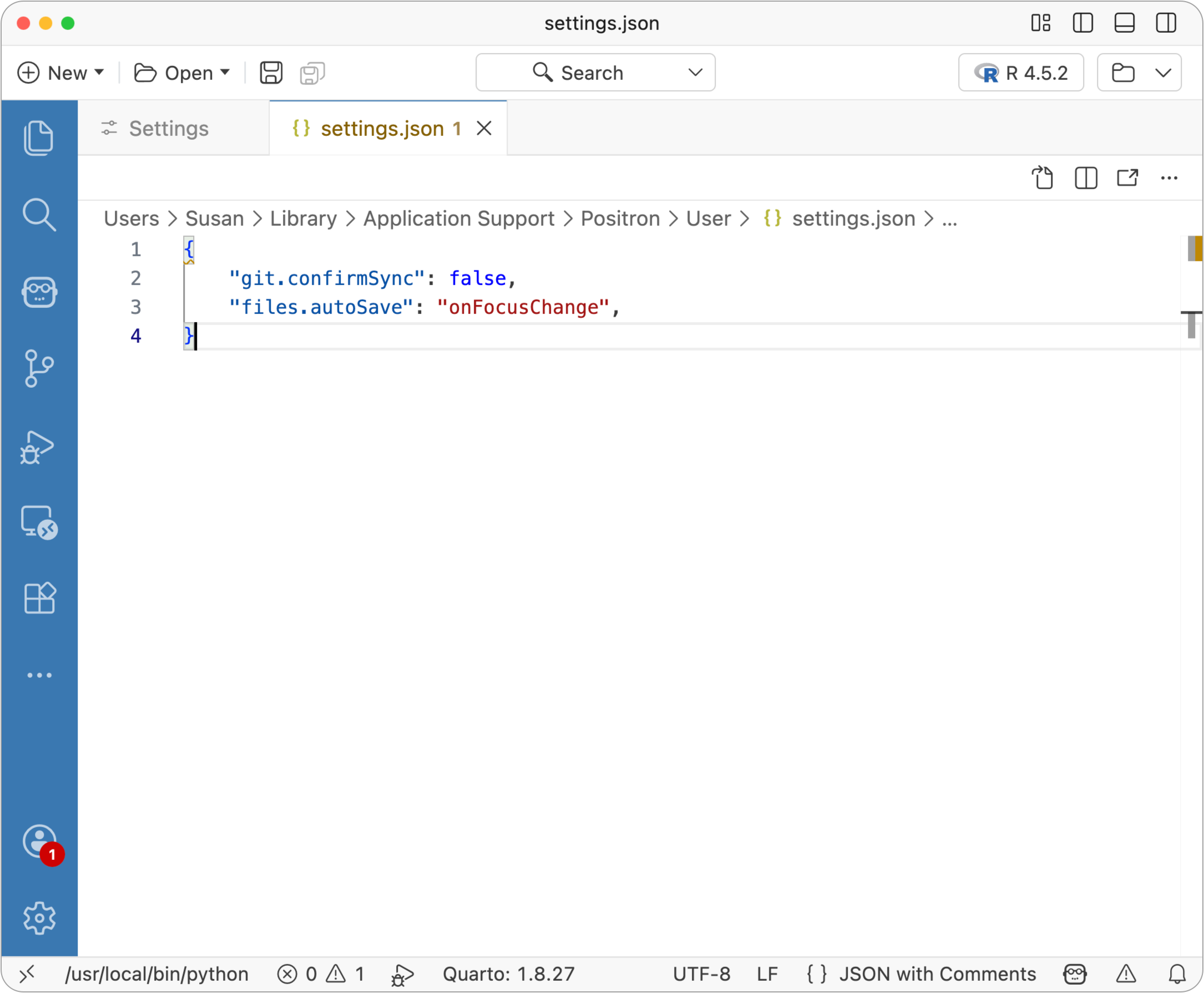
To open the settings file:
settings json and select Preferences: Open User Settings (JSON)This opens a settings.json file, where any setting you change from the default is recorded. For example:
{
    "git.confirmSync": false,
    "files.autoSave": "onFocusChange"
}
Another “must-change” setting is Format on Save, which automatically formats your code whenever you save. To enable this feature, add the following line to your settings.json file:
{
    "git.confirmSync": false,
    "files.autoSave": "onFocusChange",
    "editor.formatOnSave": true
}
Save the file. The setting takes effect immediately.
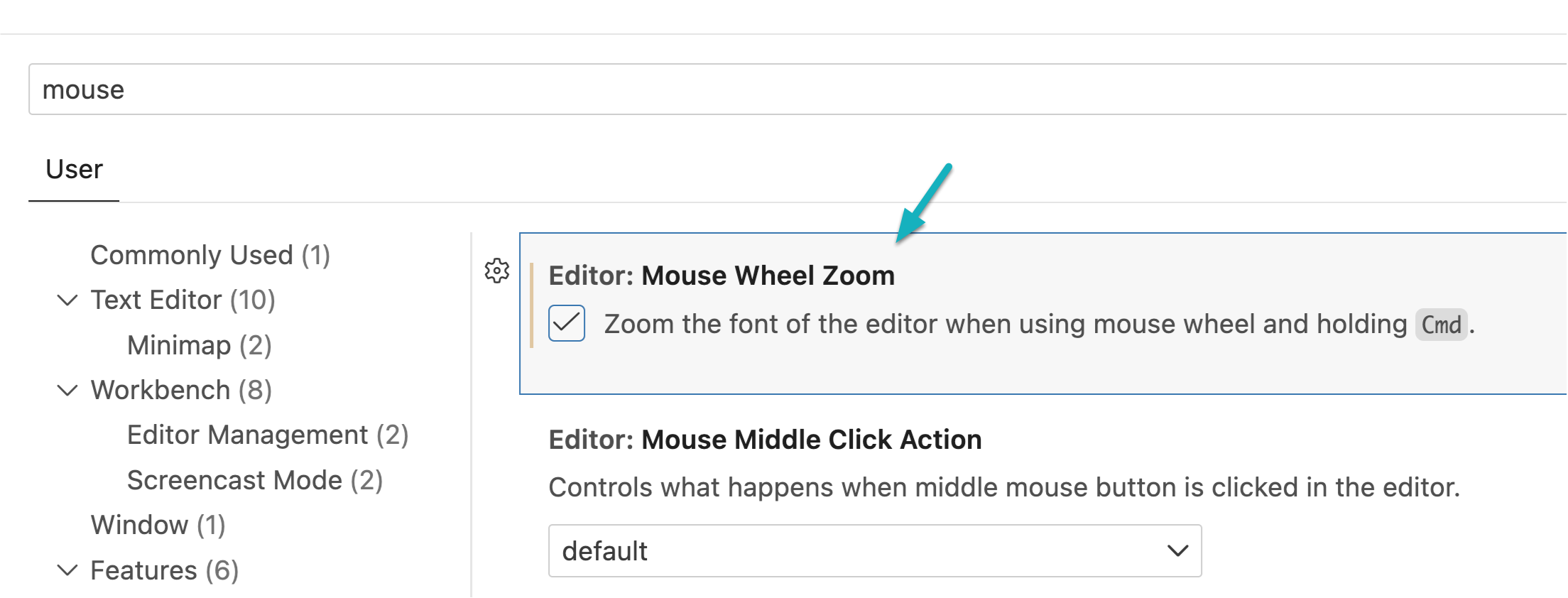
The third and final “must-change” setting I recommend enabling right away is** Mouse Wheel Zoom.** This allows you to quickly adjust the font size in the code editor by holding Cmd (Mac) or Ctrl (Windows) while scrolling with the mouse wheel.
No subscriptions, no auto-renewals.
Just a simple one-time payment that helps support my free, to-the-point videos without sponsered ads.
Unlocking gets you access to the notes for this video plus all 200+ guides on this site.
Your support is appreciated. Thank you!
 AI-Assisted Data Exploration in R with Positron
 How to Create Quarto Documents in Positron
 Git Version Control in Positron