
When working on a remote server through VS Code, you may occasionally need to edit or create files that require root permissions.
In those cases, you might see an error like this:
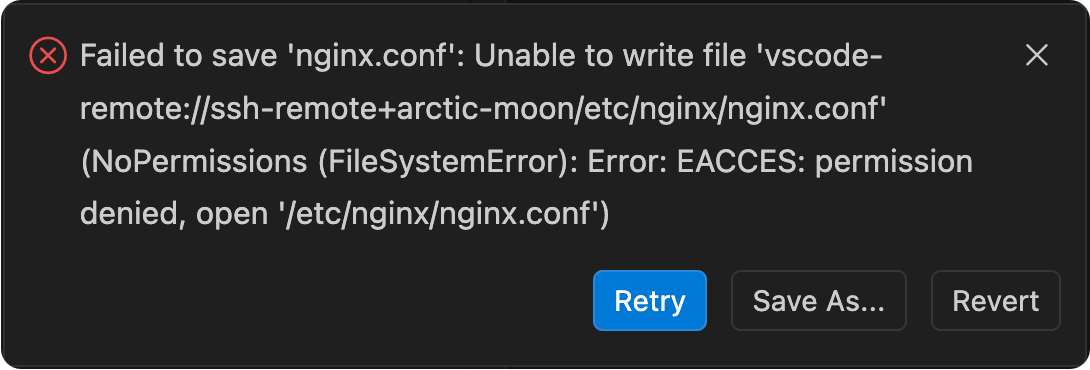
Failed to save: Unable to write file 'vscode-remote://path/to/file' (NoPermissions (FileSystemError): Error: EACCES: permission denied, open 'path/to/file')
The Save as Root in Remote - SSH extension allows you to save files with elevated privileges while connected to a remote server via SSH. This is especially useful when editing system or otherwise protected files that require sudo access.
Install the extension directly from the Visual Studio Marketplace: Save as Root in Remote - SSH.
After installing the extension:
The extension will prompt for your sudo password and securely write the file with elevated permissions.
The extension also provides "Save as Specified User..." and "New File as Root..." options in the explorer context menu.
No subscriptions, no auto-renewals.
Just a simple one-time payment that helps support my free, to-the-point videos without sponsered ads.
Unlocking gets you access to the notes for this video plus all 200+ guides on this site.
Your support is appreciated. Thank you!
 SSH Remote development with VSCode
 VSCode - Customize your keyboard shortcuts
 VSCode Remote SSH Keeps disconnecting FIXED